
Website and extension · Real interface
How to use DownXVideo
You can paste the public post link into the website, or you can install the browser extension and click the download button directly on X videos. Neither method requires providing your X login information to DownXVideo.
Use the website
Paste the post link and select the download option
Open a public X post containing media
Open a public X post containing a video, GIF, or image. Find the share icon at the bottom of the post. The website does not support private, deleted, restricted, or followers-only posts.
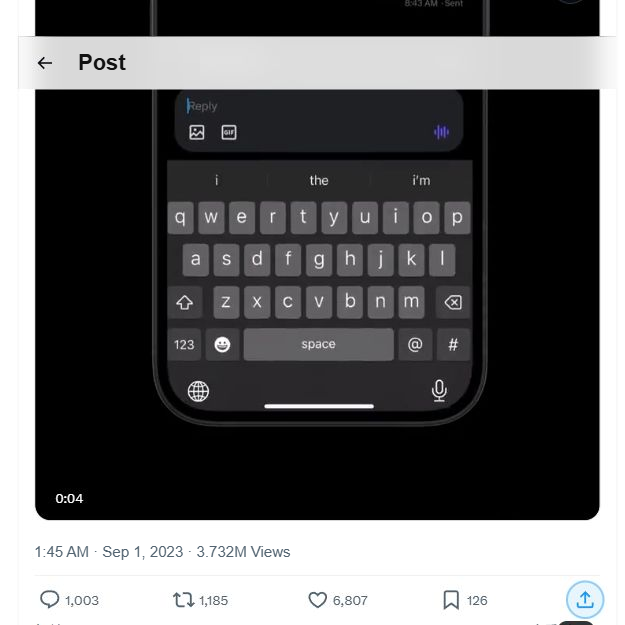
Step 1 · Open a public X post containing media Copy post link in the share menu
Select the share icon, then choose 'Copy link.' Copy the post link—not the video playback page, image URL, or profile URL.
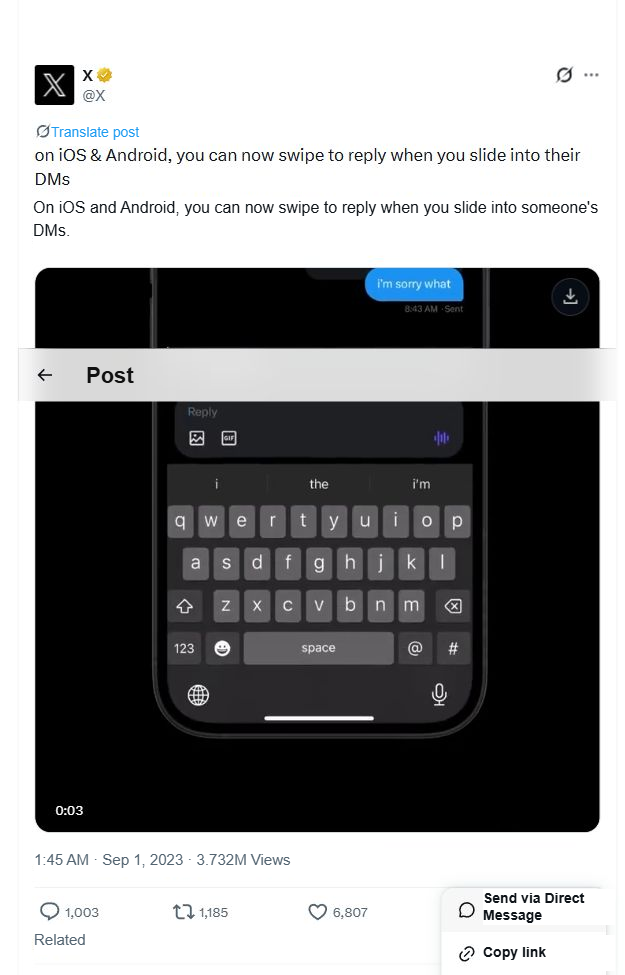
Step 2 · Copy post link in the share menu Paste the post link into DownXVideo
Return to DownXVideo and paste the complete x.com or twitter.com post link into the input box. You can paste it manually or select the 'Paste' button.
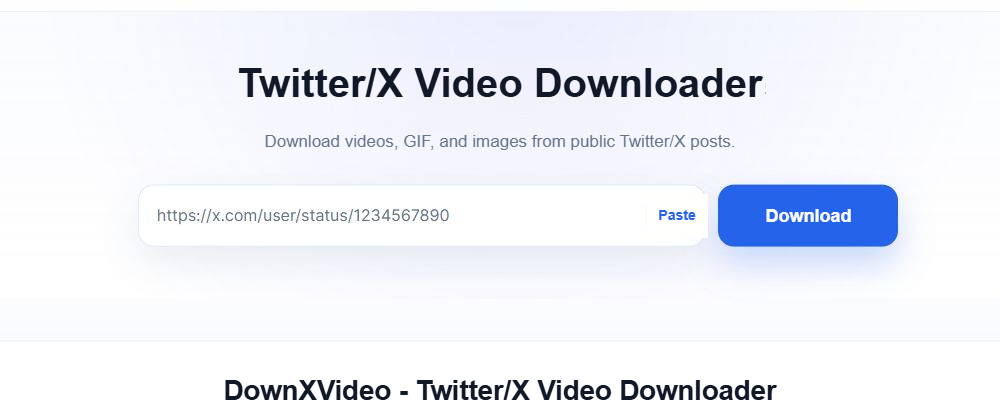
Step 3 · Paste the post link into DownXVideo Select 'Download' and wait for analysis
After checking the link, select 'Download.' DownXVideo reads the media information available in the public post. You do not need to sign in to X, and you should never provide an account password, cookie, or token.
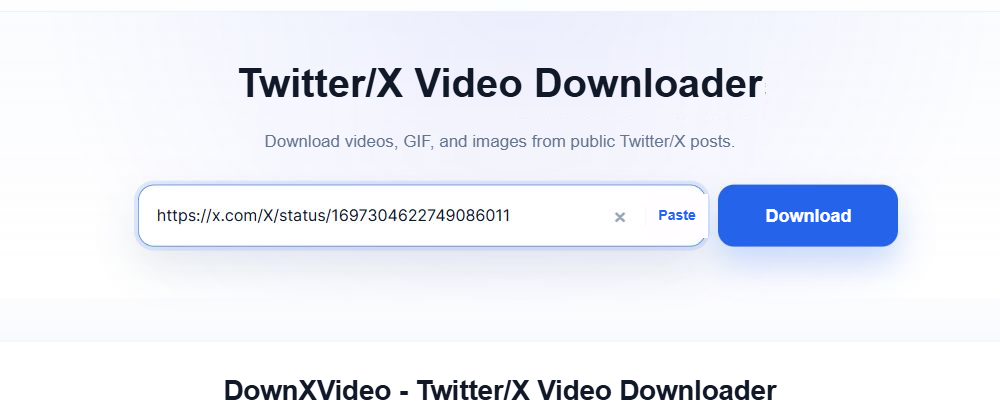
Step 4 · Select 'Download' and wait for analysis Choose the media and quality, then start the download
After analysis finishes, choose an option by media type, resolution, and file size. Your browser will request the file directly from X and may either save it immediately or open the media playback page.
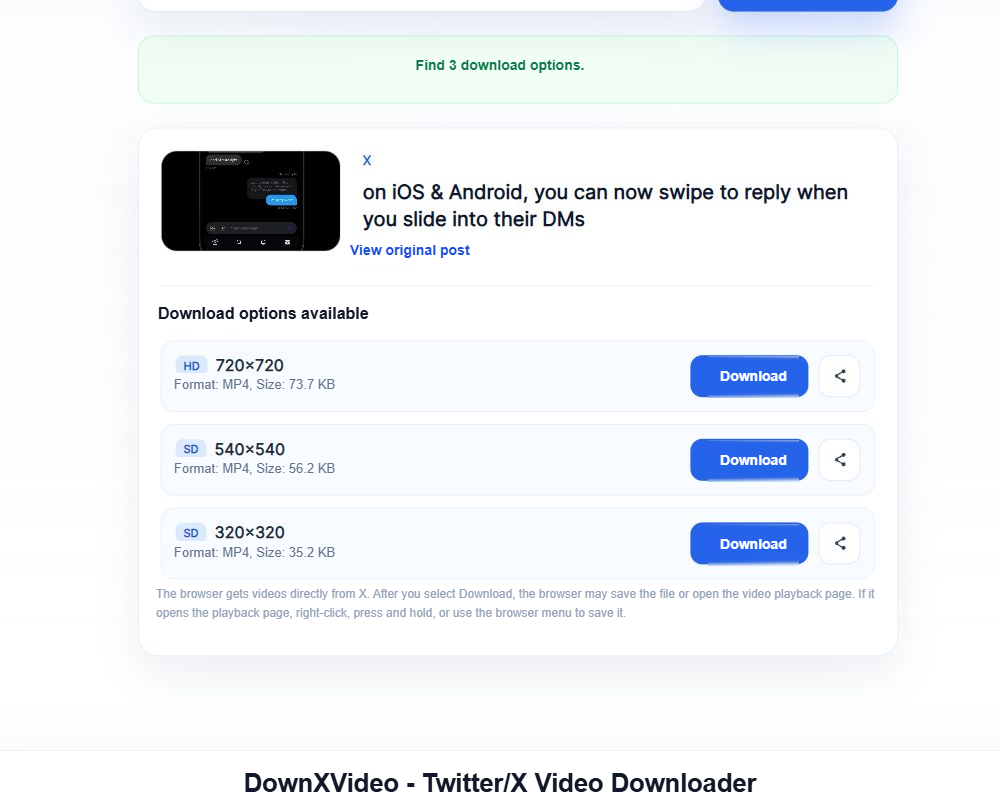
Step 5 · Choose the media and quality, then start the download
Use the browser extension
Download directly on the X video page
Install DownXVideo from the Chrome Web Store
Open the official DownXVideo listing, select Add to Chrome, and confirm the browser prompt. A welcome page opens after the installation finishes.
Open the Chrome Web Store →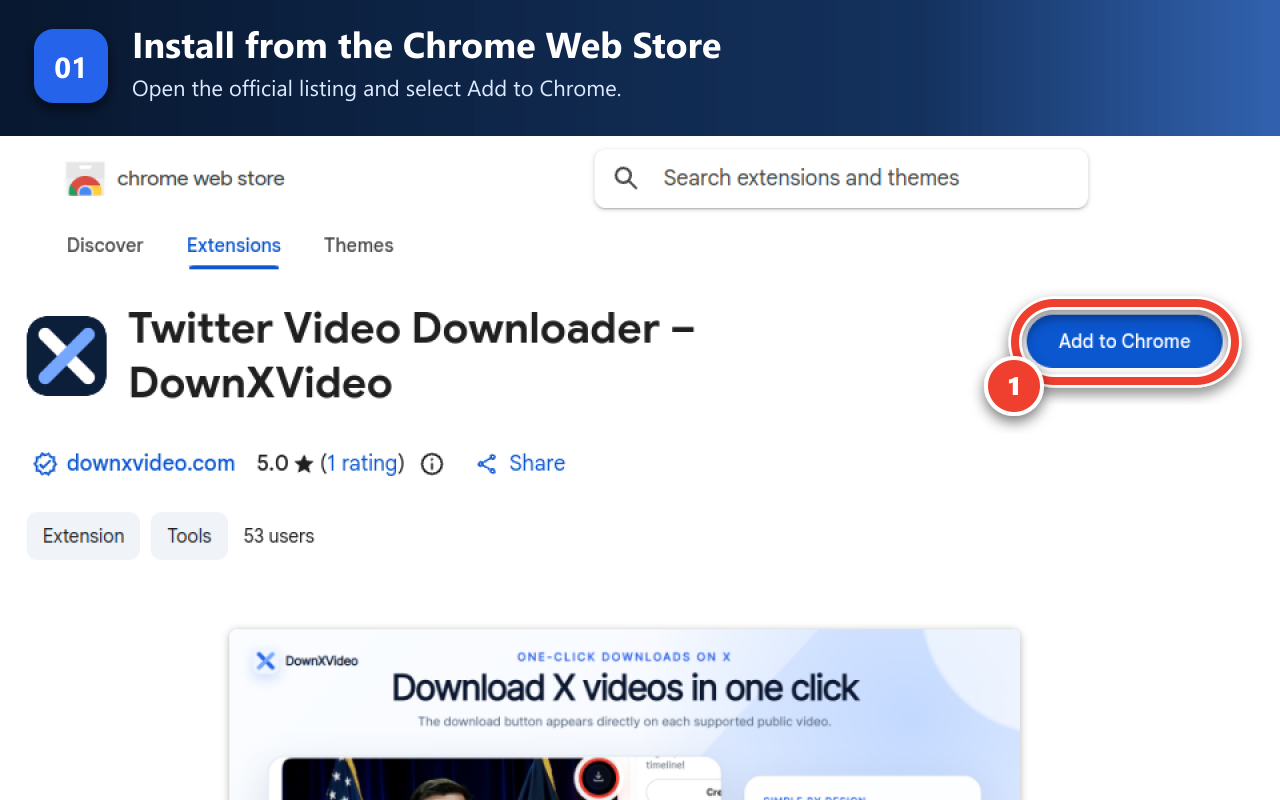
Extension step 1 · Install DownXVideo from the Chrome Web Store Close the welcome page after installation
The welcome page confirms that the extension is installed and shows the two-step quick start. After reading it, close that tab; you do not need to keep it open.
Open a public X post containing a video
Go directly to a public X/Twitter post whose video can play in the browser. You do not need to copy the post link or open the DownXVideo website.
Find and click the video download button
On a supported video, find the round DownXVideo button in the upper-right corner and click it. The extension uses your saved settings and hands the file to the browser download manager.
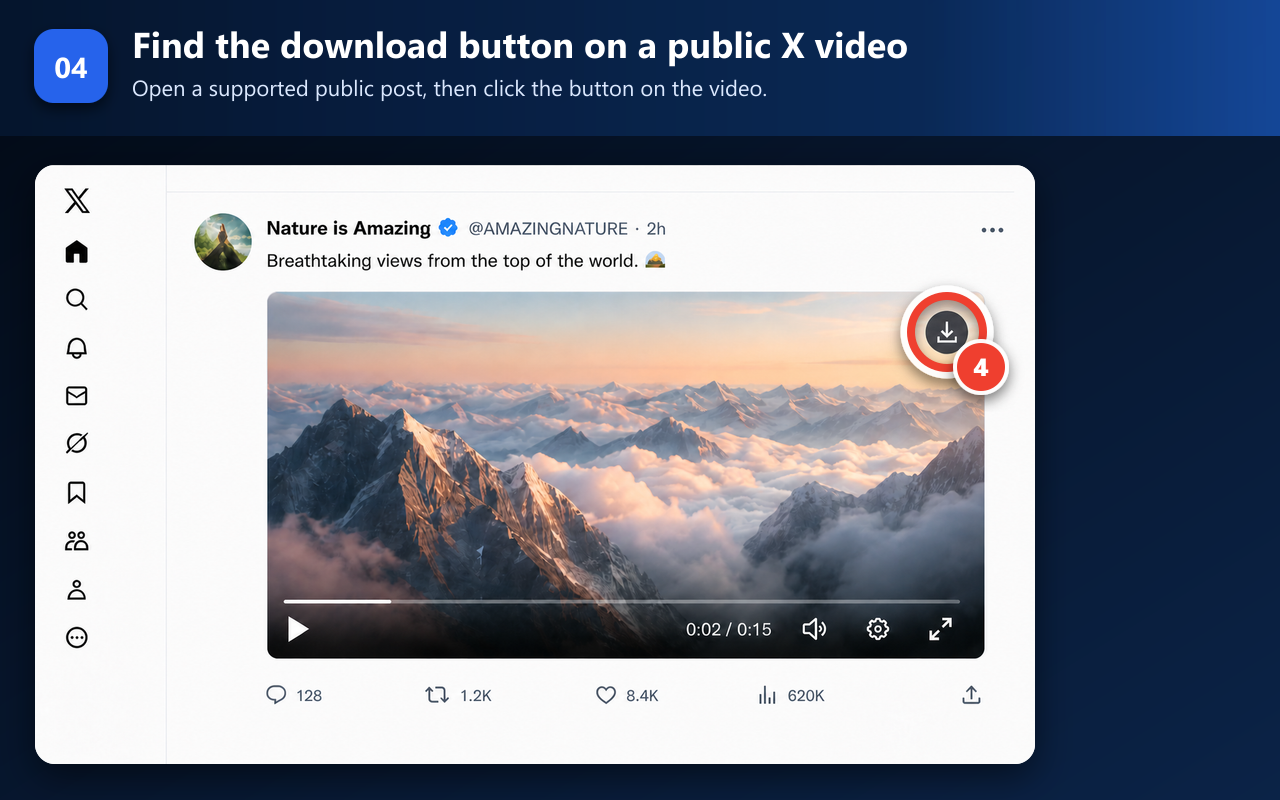
Extension step 4 · Find and click the video download button
Saving tips
Your browser handles the file after you select Download
After you select Download on the website or in the extension, your browser handles the file. Small files usually appear directly in the download list; larger MP4 files or some direct links from X may first open in a new tab.
- Computer: Right-click the video player and select 'Save Video As'.
- iPhone / iPad: Use the share menu and select 'Save to File'.
- Android: Long press the media or use the download option in the browser menu.
Frequently Asked Questions
Which should I choose, the website or the extension?
Use the website for occasional downloads or when you do not want to install an extension. If you frequently download videos while browsing X on a computer, the extension saves you from copying and pasting links. Both methods handle only publicly accessible posts.
Why did it open the video playback page after clicking download?
This can happen when the browser handles a direct media link from X. Right-click the video and choose 'Save Video As,' or press and hold the media on your phone and use the browser's save option.
Can private or restricted posts be downloaded?
No. The website only supports publicly accessible posts that do not require login and will not bypass privacy settings, follower restrictions, paywalls, deletion status, or other access controls.
Do you need to provide the X account or Cookie to DownXVideo?
No—and you should never provide them. The website accepts only public post links and does not require an X password, cookie, token, or private-message content.
Check whether the post is public, whether the link is complete, and whether there is still usable media in the post.